




This blog post is based on analysis of 267,000+ video connections representing 220,000 unique sessions across dozens of healthcare facilities.
Getting the Best Video Call Experience: A Guide for Healthcare Providers
Video consultations have become a cornerstone of modern healthcare delivery. Over the past year, we’ve analyzed over 267,000 video connections to understand what makes the difference between a smooth, professional call and a frustrating technical experience. Here’s what we’ve learned—and what you can do to ensure the best possible video quality for your patients.
The Good News: Most Calls Work Great
First, let’s start with some reassurance. The vast majority of video calls—around 90%—complete successfully without any technical issues. Your patients connect, have their consultation, and disconnect without a hitch.
However, we know that when technical issues do arise, they can be disruptive to your workflow and frustrating for patients. The good news? Most problems are preventable with a few simple best practices.
Your Network Connection is Everything
Nearly half of all video call errors (49%) stem from network issues. This is the single most important factor in call quality—more important than your device, your browser, or even your internet speed in isolation.
What you can do:
-
Use a wired ethernet connection whenever possible. While WiFi is convenient, a direct ethernet connection to your router provides more stable, consistent performance. If you’re experiencing frequent connection issues, this single change can make a dramatic difference.
-
Position yourself close to your WiFi router if ethernet isn’t an option. Video calls require consistent bandwidth in both directions. Being in the same room as your router, rather than two floors away, can reduce errors significantly.
-
Close bandwidth-heavy applications. Streaming music, automatic cloud backups, or other staff members streaming video in the background can all compete for bandwidth. During patient calls, minimize other network activity.
-
Ask your IT team about Quality of Service (QoS) settings. Many modern routers can prioritize video call traffic over other types of internet use. This ensures your patient consultations get the bandwidth they need, even when the network is busy.
Keep Your Browser Updated and Test Before You Join
Your browser is the foundation of your video call experience. Browser developers are constantly improving video calling capabilities, fixing bugs, and optimizing performance.
What you can do:
-
Keep your browser updated. That little “update available” notification? It might include important improvements to video call stability. We’ve seen error rates improve over time as browsers refine their video calling capabilities.
-
Test your devices in the waiting room. Most video platforms include a waiting room or preview screen before you join the call. Use this time to verify your camera and microphone are working properly. It’s much easier to troubleshoot issues before your patient is waiting on the other end.
Camera and Microphone Permissions: Set It and Forget It
The second-largest category of errors (44% of all issues) involves camera and microphone access. Over 10,500 sessions failed simply because the browser couldn’t access the necessary hardware.
Here’s how to avoid this:
Before your first call:
- When prompted, click “Allow” for camera and microphone access
- Check the box for “Remember this decision” if offered
- Verify you can see yourself in the preview window
- Click “Test Sound” to verify your speakers/headphones work, then speak and watch for the microphone indicator to light up green to confirm your mic is working
If you’ve accidentally clicked “Block”:
- Chrome: Click the camera icon in the address bar, or go to Settings > Privacy and Security > Site Settings > Camera/Microphone
- Safari: Safari menu > Settings for This Website > Camera/Microphone > Allow
- Firefox: Click the permissions icon in the address bar (looks like a shield or lock)
Have a Fallback
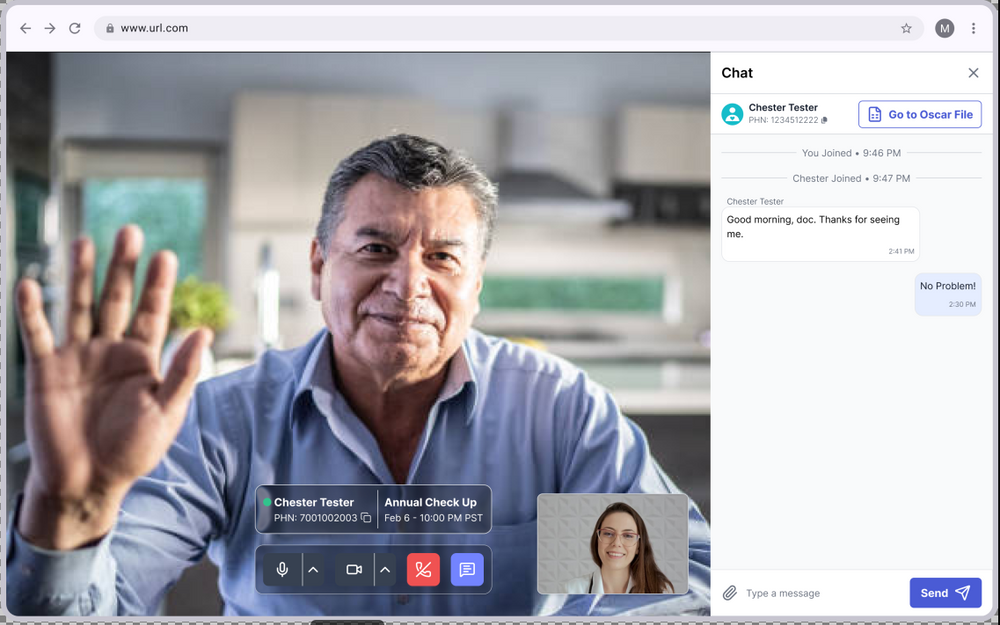
Sometimes your patients may not have a microphone on their device, or a camera. It’s common. So, it’s always a good idea to have your trusty phone as a fallback. For many visit types, a phone works well and at the very least you have the option to reach the patient, troubleshoot, ask them to switch devices or networks. Cortico displays the phone numbers the patient can be reached at inside our video call app, for this reason!
Do Your Best to Meet Appointment Times
The #1 complain from patients using Cortico is their doctor did not show up for a scheduled video call. We totally understand how hectic a telehealth practice can be, and that a single complex patient or late visitor can throw off the schedule. It’s still worth noting that the closer a visit is to the scheduled time, the more likely both participants can meet efficiently without needing additional coordination which takes time.
When to Reach Out for Help
Here’s an important statistic: just 5% of clinics experience 40% of all video call errors. When we control for call volume, the difference is even more striking—some locations have error rates 10 times higher than others with similar usage patterns.
What does this tell us? High error rates are not normal. If you’re experiencing frequent issues, it’s likely not just bad luck—there’s probably a fixable issue with your local setup.
Common culprits include:
- Outdated network infrastructure
- Firewall settings blocking video traffic
- Older computers struggling with video processing
- ISP issues in your specific area
If you’re seeing error rates above 15-20%, please contact our support team. We can work with you to identify whether it’s a network configuration issue, hardware limitation, or something else entirely. Don’t assume technical difficulties are just “part of the process”—they’re not, and we can help.
The Technical Stuff (For Those Who Want Details)
For the technically curious, here’s what happens behind the scenes during a successful video call:
- Signaling: Your browser announces it’s ready to connect
- Handshake: The two participants exchange connection information
- ICE negotiation: Your browsers figure out the best network path to each other
- Connection: Video and audio start flowing
Our data shows that once the ICE negotiation stage completes, calls almost always succeed (>100% success rate from that point). The critical moment is the handshake—about 28% of sessions fail here, usually because one participant hasn’t joined yet or because a firewall is blocking the connection.
This is why we recommend:
- Ensuring both participants are ready before initiating the call
- Having your IT team whitelist our video calling domains
- Using TURN/STUN-friendly network configurations (ask your IT team—they’ll know)
Best Practices Checklist for Clinical Staff
Use this quick checklist to optimize your video call setup:
One-time setup:
- ✓ Grant camera and microphone permissions to your browser
- ✓ Position your computer near your WiFi router, or use ethernet
- ✓ Ask IT about network prioritization for video calls
- ✓ Keep your browser updated
Before each call:
- ✓ Test your camera and microphone in the waiting room
- ✓ Close unnecessary applications and browser tabs
- ✓ Ensure no one else is streaming or downloading large files
During calls:
- ✓ Minimize other network activity
- ✓ Keep your browser window active (don’t switch to other tabs)
If you experience issues:
- ✓ Check your internet connection first
- ✓ Try refreshing the browser page
- ✓ Restart your browser if problems persist
- ✓ Contact support if issues continue—high error rates aren’t normal
Looking Ahead
We’re continuously working to improve video call reliability. Over the past year, we’ve seen steady improvements in error rates (with more than a 30% relative reduction in error rates, since early 2025). We’ve also improved how browsers handle disconnections, reducing spurious error messages.
But the biggest improvements don’t come from our code—they come from educated users who understand their setup and know how to optimize it. We hope this guide helps you provide better care to your patients through reliable, frustration-free video consultations.
Have questions about your specific setup? Seeing higher error rates than expected? Reach out to our support team. Video consultations should be the easy part of your day, and we’re here to make sure they are.
