



A patient arrives for a first appointment. The booking is there, but their contact details are incomplete, a required form is missing and nobody is sure whether the clinic’s notices have been provided. The front desk has to resolve all three before the visit can begin.
A useful patient intake form makes those requirements clear before arrival. It also gives staff a way to see what is complete and what still needs attention.
This guide focuses on the administrative side of intake: registering the patient, checking contact details and preparing the handoff to any clinical forms required for the appointment.
Use the registration flow configured for your clinic
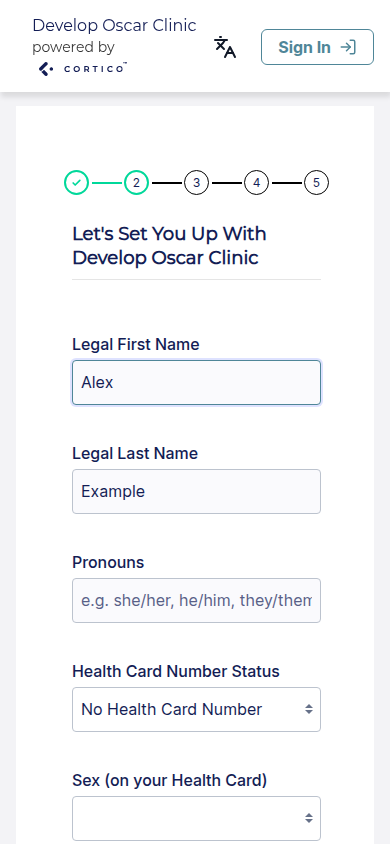
Cortico’s patient registration is an in-product workflow. It is separate from the named clinical questionnaires in the form library. Review the patient-facing fields and the clinic’s configured requirements before inviting patients to register.
Walk through registration on a phone, then check what staff receive. Confirm how the patient is matched to a record and where incomplete information needs follow-up.
Your clinic’s notices and consent documents should reflect its services and information practices. A registration screen is not a substitute for every clinical consent process.
Collect information with a clear purpose
A form often gets longer because each department adds one more question. Start by deciding what information is needed to register the patient, prepare this appointment and contact them about it.
| Information | Practical use |
|---|---|
| Name and date of birth | Help staff match the patient to the right record |
| Existing clinic reference, if known | Help returning patients avoid duplicate registration |
| Current phone and email | Give the clinic usable contact details |
| Preferred contact method and restrictions | Help staff communicate in the way agreed with the patient |
| Language or assistance needs | Help the team prepare an accessible registration process |
| Appointment requirements | Show which forms, documents or referral details are outstanding |
Only add other fields when your clinic has a reason to collect them. Explain that purpose where it may not be obvious. An emergency contact, for example, should not automatically become the person who receives routine appointment messages.
Keep the field labels familiar. “Phone number” is easier to answer than an internal label from your registration software. Give patients a way to flag a question they need help with instead of forcing an inaccurate answer to finish the form.
Keep registration, preferences and consent understandable
Several different decisions can appear in a new-patient package. Patients should be able to see which one they are making.
Registration details identify the person and help the clinic arrange care. Contact preferences describe how the clinic can reach them. Privacy notices explain the clinic’s information practices. Treatment-specific consent belongs with the relevant clinical discussion and documentation.
Keep those sections clearly labelled. If your clinic requires a signature or acknowledgement, use its approved document and record the version supplied. Avoid a single catch-all checkbox that appears to cover every future use of information or every possible treatment.
Define where staff record which notices or acknowledgements were provided, using the process approved by your clinic.
Adapt the administrative fields for Canada or the US
A Canadian clinic may need provincial coverage details for its registration process. A US clinic may need insurance or self-pay information. Those requirements can vary by service and practice.
Review the fields and configuration your team actually uses. Collecting insurance details does not confirm eligibility, coverage or payment. Give that verification task a separate owner and status where it is part of your workflow.
Place the form in the patient journey
For a new patient, the form can follow registration or booking. For a returning patient, an update request may be enough. The important part is deciding when the clinic needs the information and what happens if it is missing.
A simple pre-visit process looks like this:
- Booking: identify the appointment type and the forms it requires.
- Request: send the patient the relevant form through the clinic’s approved channel.
- Completion check: review outstanding items before the visit.
- Exception: offer help or arrange completion at the clinic where needed.
- Chart handoff: match and file the response, then send clinical material to the appropriate reviewer.
Tell patients what to expect. If an incomplete form does not cancel the appointment, the reminder should not imply that it does. If staff need to speak with the patient first, name the contact route and opening hours.
Make the checklist useful to reception
Give staff a clear way to record who checked the details, what remains outstanding and who will follow up. This helps prevent a task from passing between several people without being resolved.
For example, a missing referral and an unreadable attachment need different follow-up. Record the issue clearly enough that the next staff member can act without repeating the whole intake conversation.
Do not turn the checklist into a second patient chart. Keep the working status where staff can use it, and retain the completed information through your approved clinical-record process.
Connect intake to the EMR
Cortico’s patient intake forms can collect information at different points in the patient journey and save responses to a supported EMR. A clinic can use different forms for different appointment types instead of asking every patient the same questions.
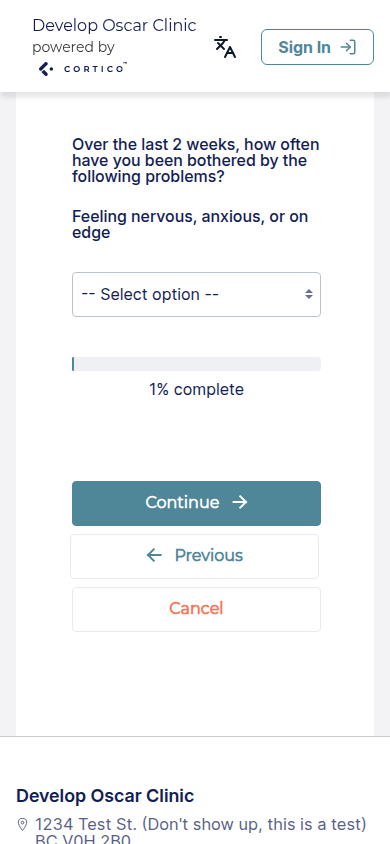
Before rollout, test the full path with your team: open the form as a patient, submit a test response, find it in the EMR and check what staff see when something is incomplete. Use your integration’s documented capabilities; a filed document is not the same as every answer becoming a structured chart field.
For patients completing registration at the clinic, a check-in kiosk may provide another route. Keep staff assistance available for patients who need it.
Measure the work, then shorten the form
Track the share of appointments with required intake ready, the number of forms needing follow-up and the time staff spend re-entering information. Look at where patients stop or ask for help.
If a question creates work but does not help anyone prepare the appointment, review whether it belongs on the form. An efficient intake process collects the right information once and makes it available to the people who need it.
Does registration cover the whole new-patient package?
Registration is the administrative starting point. Your clinic may also need reviewed clinical questions, notices and consent documents for the planned appointment.
Should every patient complete the full form again?
Your clinic should define when a full registration or a shorter update is appropriate. Make that choice visible so returning patients are not automatically asked to repeat every answer.
Bring your current intake package to a workflow demo. We can show how registration, forms and the EMR handoff fit together for your clinic.
