


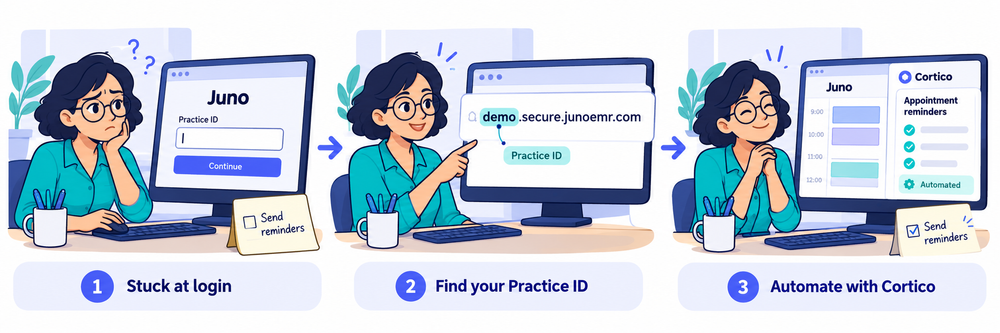
The general Juno EMR login page is login.junoemr.com. Each clinic also has its own address that follows the https://<practice-id>.secure.junoemr.com/ pattern.
Need help finding your Practice ID? Continue reading for the steps below, or jump to the Practice ID checker.
To sign in, have this information ready:
- Practice ID - the part of your clinic’s Juno link before
.secure.junoemr.com(find yours) - Username and password - issued by your clinic administrator
- Passcode - a numeric PIN your administrator sets
Still stuck? The rest of this guide covers how to find your Practice ID, what to do about a forgotten password or passcode, how to unlock a locked account, and how clinic admins can reset access without waiting on Juno support.
Running Juno at your clinic? Cortico adds online booking, automated reminders and digital intake that write straight into your Juno schedule and chart. See the Juno integration →
Logging in to Juno EMR: what to expect
Juno EMR asks for four things at every login:
- Your Practice ID
- Username
- Password
- A second-level passcode, which is a numeric PIN of at least 4 digits set by your clinic administrator rather than an authenticator app
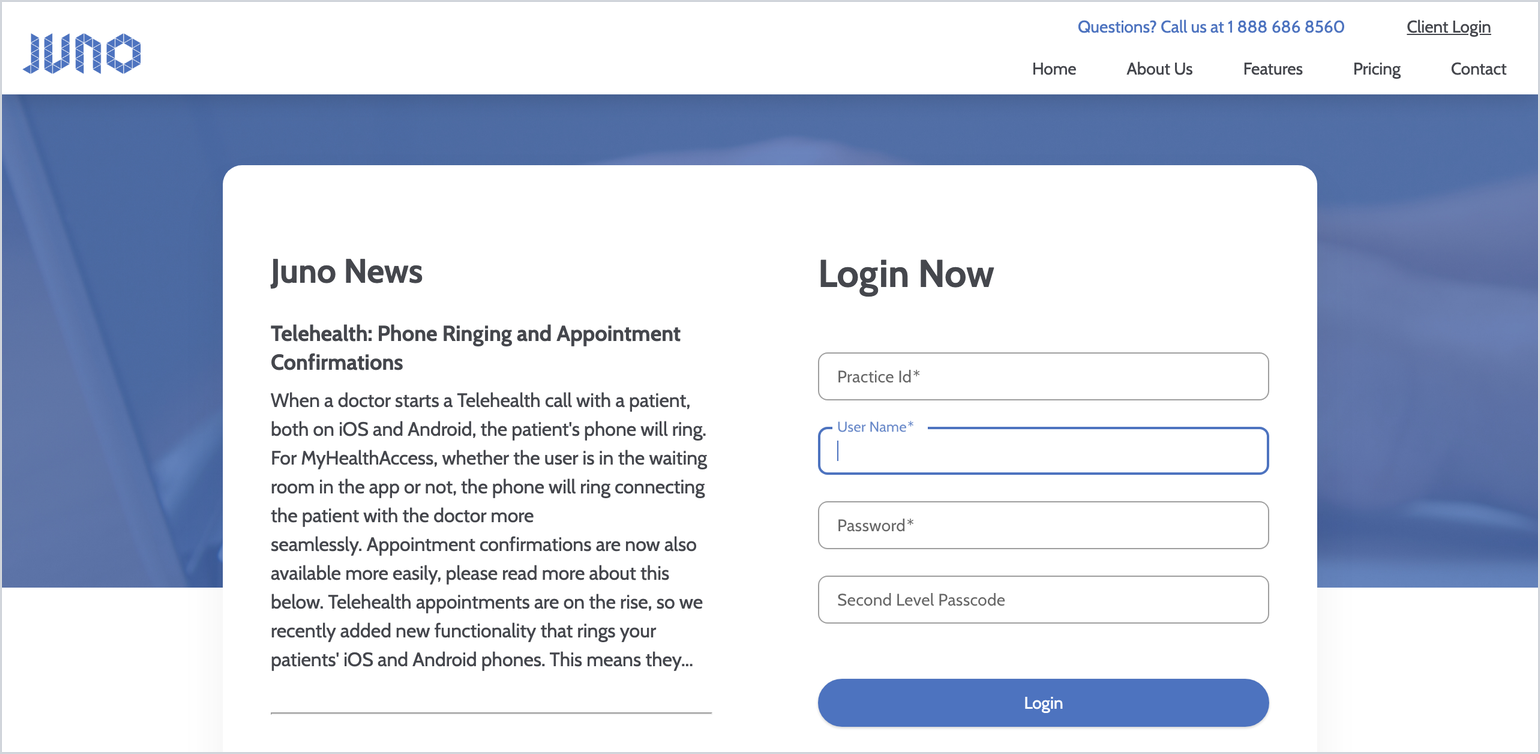
Juno EMR’s login page at login.junoemr.com.
The passcode isn’t an optional or clinic-level toggle. Juno requires the PIN for every user on every login. Keep the PIN somewhere you can find it along with your password.
Juno has two login pages. The general page at login.junoemr.com asks you to type in your Practice ID, while your clinic’s own link fills it in for you. The two pages look different but take the same username, password, and passcode, so if your bookmark ever stops working, the general page always works.
How to find your Practice ID
Your Practice ID is your clinic’s subdomain on Juno. Every clinic’s Juno address looks like https://YOUR-PRACTICE-ID.secure.junoemr.com/ — for example, yourclinic.secure.junoemr.com means the Practice ID is yourclinic.
Here are the fastest ways to find your Practice ID:
- Read your clinic’s Juno link. Open the bookmark on any workstation, or ask a colleague who is already signed in. The part before
.secure.junoemr.comis your Practice ID. - Open the clinic-specific link and look at the login form. The link pre-fills the Practice ID field, so the value already in the box is your ID.
- Ask your clinic administrator. Administrators manage every account on the practice: they can tell you the ID, reset your password or passcode, and re-issue credentials.
If your clinic’s address doesn’t end in .secure.junoemr.com, you may be on a different OSCAR-based EMR. The OSCAR EMR login guide covers each OSCAR host login, including OSCAR Pro, OpenOSP, and Avaros.
Not sure you have the right ID? Use the Practice ID checker below - it builds your clinic’s address and lets you verify it with one search.
Keeping your Juno login secure
A few habits that keep your account and your patients’ records secure:
- Never share your login. Every action in Juno is tied to a user account for audit and compliance reasons.
- Log out or lock your screen whenever you step away from a shared clinic computer.
- Use a password manager instead of retyping or reusing passwords across systems.
- If you’re a new hire, ask your clinic administrator to set up your account rather than logging in under someone else’s credentials. Having your own login matters for both security and Juno’s own audit trail.
Can’t log in to Juno EMR?
Most Juno login problems come down to a forgotten password or passcode, or a locked account. For all three, Juno’s own troubleshooting article says to check the basics first, then go to your clinic administrator.
Forgotten password or passcode
There’s no self-serve “forgot password” link on login.junoemr.com. Juno’s support portal walks through three checks first:
- Check Caps Lock (usernames and passwords are case-sensitive).
- Make sure you’re entering all four fields (Practice ID, username, password, passcode).
- Confirm your password meets the minimum (8+ characters, at least 3 of: uppercase, lowercase, numbers, special characters).
If those checks don’t get you in, the documented next step is your clinic administrator, not Juno support directly. Admins can reset a user’s username, password, or passcode from inside Juno’s own user-management screen, or force a password reset on next login. Only escalate to Juno support ([email protected] or 1-888-686-8560 ext. 1) if your clinic doesn’t have an available administrator.
Locked account
Repeated failed login attempts can lock an account as a security measure. A clinic administrator can review the Security Log (which shows exactly why a login failed: wrong PIN, wrong password, or unknown username) and unlock or reset the account directly, without waiting on Juno support.
Contacting Juno EMR support
Juno’s support team is available Monday–Friday, 5am–5pm PST (6am–6pm MST, 8am–8pm EST), closed on statutory holidays and weekends. The same number (1-888-686-8560, ext. 1) also reaches an after-hours emergency line outside those hours.
Admin and user management basics
Every Juno EMR clinic has at least one administrator account that can add new staff, deactivate departing staff, and reset other users’ passwords or locked accounts (without waiting on Juno’s support team).
Juno’s admin documentation states that from the “Search/Edit/Delete Security Records” screen under User Management, an admin can reset a user’s username, password, or second-level passcode, or flip on “Force password reset” so the user sets new credentials at their next login.
The Security Log Report, under System Reports in the same admin panel, shows exactly why a login failed (wrong passcode, wrong password, or an unrecognized username). This is usually enough to diagnose the problem without a support call.
Here are some best practices for Juno clinic admins to follow:
- Deactivate (don’t just stop using) accounts for staff who leave, because an active login for someone no longer at the clinic is both a security and compliance risk.
- Review user roles periodically, especially after a change in EMR vendor contact or practice ownership.
- Keep at least two people at the clinic with admin access. This means a single person being unavailable doesn’t block a password reset or a new hire from getting into the system.
If your clinic doesn’t have a designated Juno administrator, or no one remembers who has admin access, Juno support can help you sort out account ownership. Start by sending an email to [email protected].
Check your Juno Practice ID
Your Practice ID is the part before .secure.junoemr.com in your clinic's Juno link.
Want to cut down the repetitive admin work in your Juno EMR clinic?
Cortico takes booking calls, reminder calls, and paper intake off your front desk. Patients book online around the clock, get reminders automatically from your Juno schedule, and complete their forms before the visit. Cortico runs on top of Juno, so your team keeps working the way it already does.
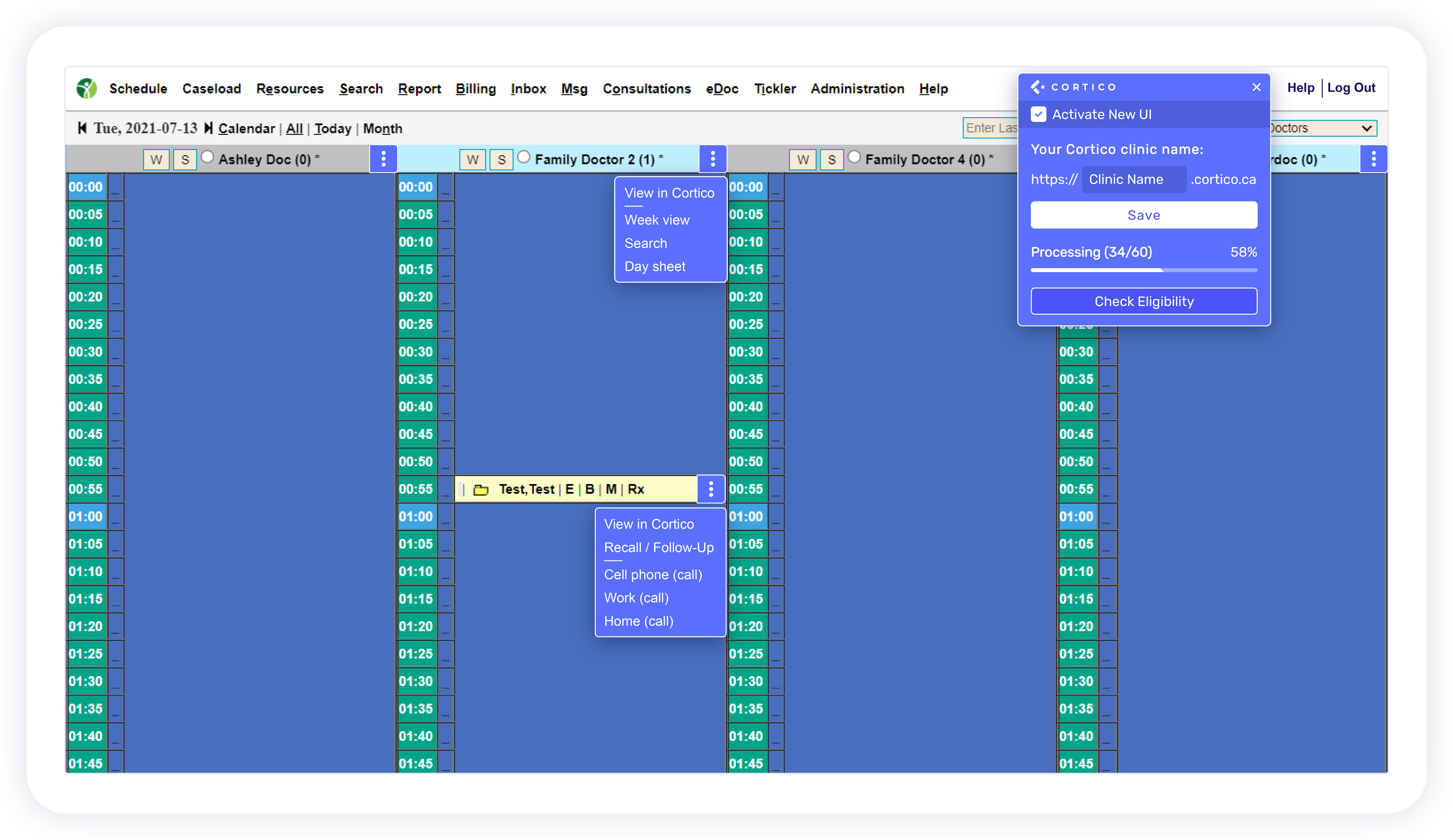
An existing Cortico plug-in screenshot in an OSCAR-style EMR. The interface shown is an example, not a verified Juno screenshot.
Learn more about Cortico for Juno EMR
